MacBook auto sleep on low battery
You kick off an AI agent run, start a Docker build, or let Ollama pull a model — then close the lid and walk away. Without a floor, the Mac will run the battery flat while you're gone. Auto sleep protection lets you set a threshold once, so the session ends cleanly before it drains to zero and drops the work.
Why running a laptop flat is a problem
A keep-awake session that ignores battery will happily run a laptop to empty. When it finally cuts out, anything unsaved goes with it, and an interrupted job stops at whatever percent it reached.
There is a hardware angle too. Routinely draining a lithium cell to zero is harder on it than stopping with some charge in reserve, so a flat-every-time habit chips at battery health over months.
The fix is not to babysit the percentage. It is to set a floor once and let the Mac respect it automatically.
How auto sleep protection works in LidRun
You set two levels: a warning level and a critical level. At the warning level you get a heads up, on device and by push, so you can plug in or wrap up if you want to.
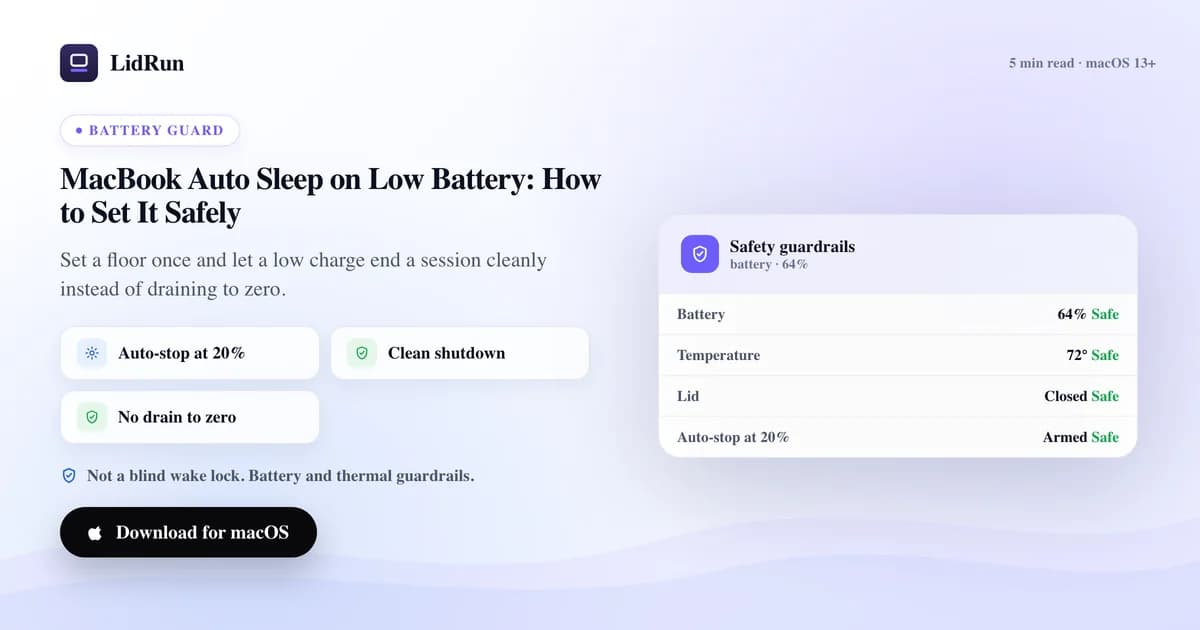
At the critical level, LidRun stops holding the Mac awake and lets it sleep, with charge still in reserve. The session ends on its own terms rather than at a dead battery.
This runs alongside thermal watch, so a session can end because of heat or because of charge, whichever limit it reaches first. Both are about stopping cleanly, not pushing the hardware.
Low-battery auto-stop is part of LidRun's free tier and is never gated behind Pro. A basic safety floor should not require a paid plan.
Related guideDeveloper Runtime Safety for AI AgentsAuto-stop for AI agents, Docker builds, and model runs
It matters most for the jobs you start and walk away from: an AI agent run mid-task, a Docker build grinding through layers, an Ollama model pull that takes real time. On battery, all of those can quietly drain the Mac with nobody watching.
If you are always plugged into mains power, the risk is smaller, but leaving the threshold on still covers the case where a cable gets knocked loose or an outlet drops.
If you run long AI or developer jobs on the go and worry about coming back to a dead laptop, that is the situation LidRun's auto sleep protection is for, and it is worth setting up once and forgetting about.
Picking thresholds that fit
A common, sensible pairing is a warning around 30 percent and auto sleep around 15 to 20 percent. That gives you time to react and still leaves a safe reserve.
If your battery is older and its real capacity has dropped, nudge both levels up a little, since the last stretch of charge goes faster on a worn cell.
Set it once to match your battery and your typical work, then leave it on as a standing safety net under every session.
LidRun keeps your work running with the lid closed, with battery and thermal safety built in.
Already have LidRun? Read the setup guide →
Frequently asked
A common choice is a warning around 30 percent and auto sleep around 15 to 20 percent, but set what fits your battery health and your work.
Yes. LidRun warns you at your warning level, on device and by push, before the Mac sleeps at the critical level.
Stopping with charge in reserve is gentler on a lithium cell than draining to zero every time, so an auto-sleep floor helps avoid one habit that wears a battery down.
It stays on as a safety net, so a dropped cable or lost outlet ends the session cleanly instead of running the battery flat.